

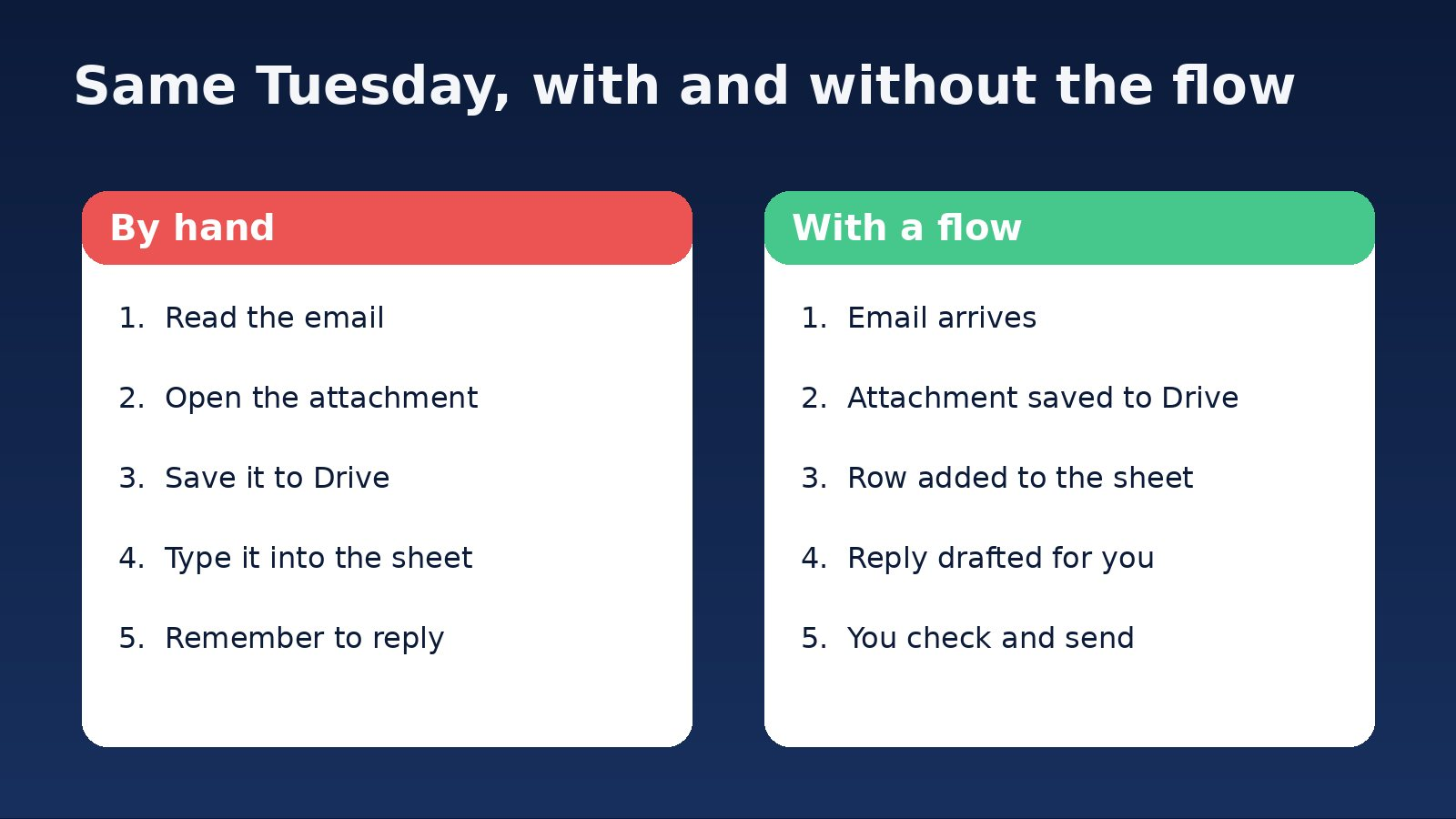
An enquiry lands in your inbox at 4:45pm. Someone on your team reads it, copies the name and phone number into a spreadsheet, saves the attached photo into the right folder, writes a reply, and tells the others in chat. It takes ten minutes. It happens a dozen times a week. Nobody ever decided it was a good use of anyone’s time. It just became the way the office works.
If your business already runs on Google Workspace, Google has a tool built for exactly this kind of job, and it is probably included in the plan you already pay for. It is called Workspace Studio. This guide explains what it does, what Google changed in October 2026, where it falls short, and how to try it without making a mess.
What Workspace Studio actually is
Google describes Studio as “the place to automate work and design, manage, and share AI agents in Google Workspace,” and says you can “automate everyday work, from simple tasks to complex processes, no coding required” (Google Workspace Studio). That is Google’s description of its own product, so read it as a pitch. The practical version is simpler.
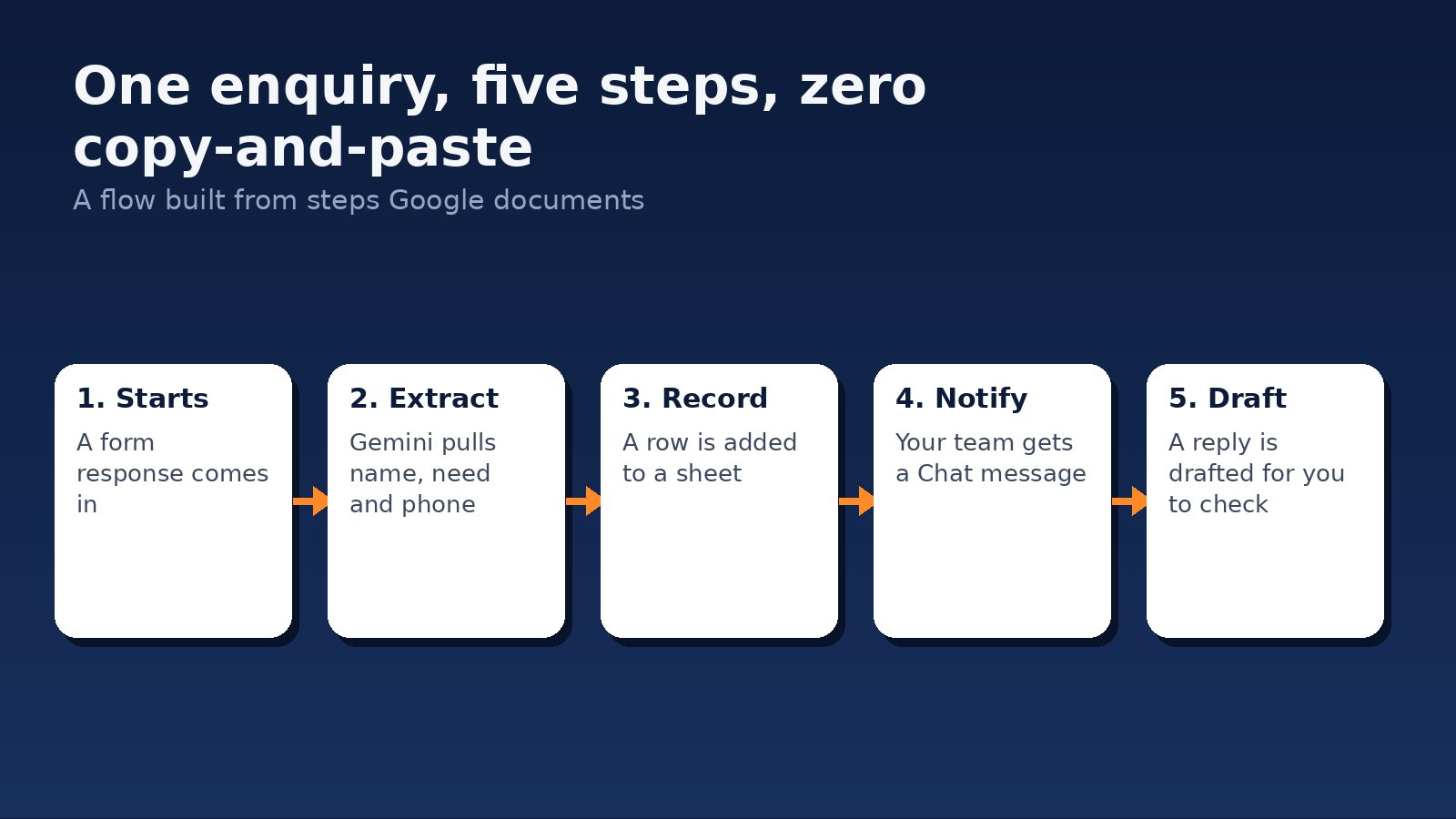
You build a flow. A flow has a starting event (Google calls it a starter), followed by one or more steps. The start might be “when I get an email” or “when a form response comes in”. The steps might be “ask Gemini to pull out the key details”, “add a row to a sheet” or “draft an email”. You can describe what you want in plain language and let Gemini assemble the flow, then adjust it.
On cost, Google’s page says Studio is “generally available with all Business and Enterprise Workspace plans”. It does not list a separate Studio price. If you’re on a Business or Enterprise plan, the tool is part of what you’re already paying for. If you’re not sure which plan you’re on, ask whoever manages your Google account, or check the plan page in your admin console before you plan anything around it.
What it can do today
Google publishes the full list of starters and steps in its help centre (Starters and steps in Workspace Studio). A flow can start when:
- a new email arrives, with optional filters
- a Google Form response comes in
- a row or column in a sheet changes
- a file or folder is added to a Drive folder
- a set time before or after a calendar event
- a schedule you set, such as every Monday at 8am
And a flow can then do things like:
- ask Gemini to summarise, extract details or decide between options
- draft, label, archive, send or reply to emails
- add, update or clear rows in a sheet
- save email attachments to Drive, create folders, or move and copy files
- post to a Chat space or notify you in Chat
- block time or set up a meeting in Calendar
Google’s own examples include capturing meeting action items and drafting an email to share them, labelling high-priority emails, and saving attachments to a Drive folder while recording them in a sheet, all without leaving Gmail. It also lists connectors, some still in beta, for tools such as Asana, Jira, Mailchimp and Slack.
What changed in October 2026
On 9 October 2026, Google announced four additions to Studio (Google Workspace Updates, 9 October 2026):
- Nested conditionals. A flow can now make decisions inside decisions. For example: if the enquiry is about a quote, then check whether it mentions a deadline, and handle urgent ones differently.
- Gmail skip replies. An email-triggered flow can ignore follow-up replies, so it fires on the first message in a thread and not on every back-and-forth.
- Richer Meet and Calendar outputs. Flows get more meeting detail, including full invitee lists, and template support for post-meeting follow-up email drafts.
- Search for a doc. A new Drive step finds document files using search terms you set.
Google says the rollout started on 13 October 2026, and that features can take up to 15 days to appear. The features are switched on by default for end users, and administrators control them through their existing Studio policies. If you don’t see them yet, that’s normal. If you’d rather your staff didn’t have them, your admin can block specific steps.
Why this matters to a business owner: the “skip replies” fix removes one of the most obvious ways an email automation could misfire, and nested conditionals mean one flow can handle more than one kind of enquiry. Neither is glamorous. Both make the tool more usable for real work.
Four jobs worth automating first
These are our suggestions, not Google’s. Each one is built only from steps Google documents, and each one is dull on purpose. Dull, repeated jobs are where automation pays back.
1. Log every web enquiry
Start with a Google Form response. Have Gemini pull out the name, phone number and what the person wants, add a row to a sheet, and post a note in your team’s Chat space. Nobody has to remember to update the list, and nothing sits unseen overnight.
2. File every attachment
When an email arrives from a supplier or client with a file attached, save the attachment to the right Drive folder and add a line to a sheet. This suits trades, accountants, renovators and anyone who receives plans, invoices or photos by email.
3. Draft the meeting follow-up
Use the meeting trigger to draft a follow-up email with the action items after a call. The October update added template support for these drafts. You read it, fix anything wrong, and send.
4. Send yourself a Monday summary
Set a schedule so that every Monday morning a sheet of open quotes or unpaid jobs is summarised and posted to you in Chat. It stops things quietly going stale.
The limits, and the habits that keep you safe
Studio is useful. It is not magic, and Google’s own documentation says so plainly. These are the points that matter most for a small business:
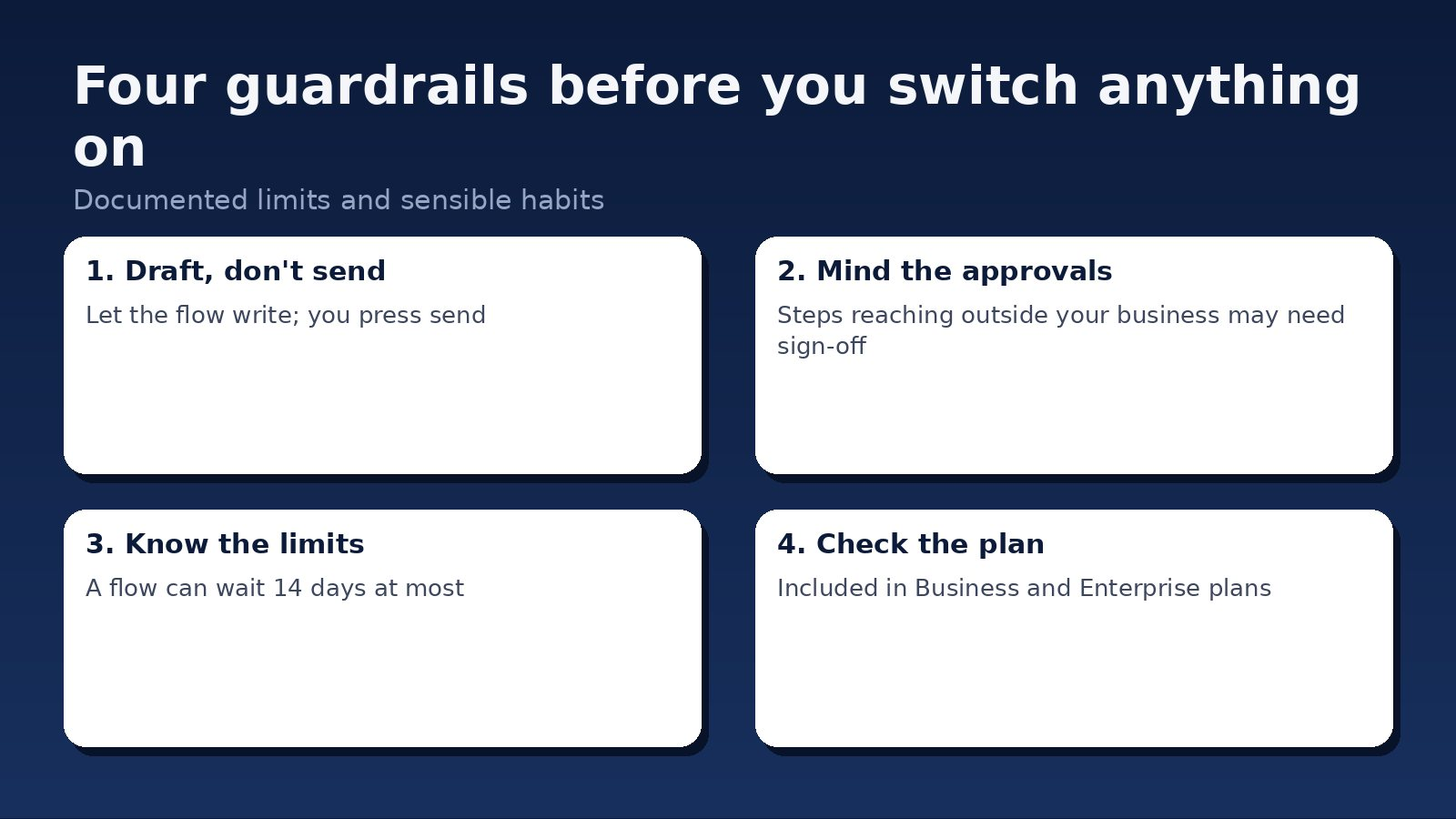
- It can wait, but not forever. A “wait until” step lasts at most 14 days.
- Summaries only cover what you give them. The Summarize step works on content you supply and can’t, for example, summarise every unread message in a Chat space.
- Email triggers are fairly basic. The email starter only works with default Gmail labels, and its filters can’t use label names or dates.
- Approvals can interrupt. Steps such as sending a reply may need approval when a flow involves people outside your organisation, and admins can require approval for other steps too.
- Some features depend on account type. Several starters and steps need a work or school account, and some integrations are still in beta.

Our advice is to let the flow draft, and let a person send. Gemini can misread an enquiry. A flow that drafts a reply and leaves it for you to check costs you thirty seconds. A flow that sends a wrong reply to a customer costs you a lot more. Keep the human in the last step until a flow has proved itself on real cases.
What it costs and how you’ll know it’s working
The software cost is, on Google’s description, nothing extra if you’re on a Business or Enterprise plan. The real cost is the time to set a flow up properly and the time to check it. Expect an afternoon for a simple flow and longer for anything with decisions in it. We haven’t found published NZ figures for how much time small businesses save with tools like this, so we won’t quote one. Measure your own.
Here is how. Before you switch a flow on, time the job by hand a few times. After a fortnight, count how many enquiries or files the flow handled, how many it got wrong, and how long you spent fixing them. If the flow handles most cases and the fixes are quick, keep it. If you’re correcting it constantly, simplify it or switch it off. For enquiries, also watch how fast you reply. A flow that gets every new lead in front of a person within minutes is doing its job.
When a DIY flow isn’t enough
Studio is a good fit when your work already lives in Gmail, Drive, Sheets, Calendar, Chat and Meet. It is a weaker fit when your process spans lots of other systems, when several people need to approve each step, or when a mistake would be expensive or embarrassing. Google lists only a handful of third-party connectors, and some are in beta, so check that the apps you rely on are on the list before you plan around it.
That is where a second pair of eyes helps. We set up and review Google Workspace for Auckland businesses, and we’d rather tell you a flow isn’t worth building than build one that creates work. See our Google Workspace and AI automation services if you want to talk it through. If you’re thinking more broadly about where automation fits, our guide to AI automation for NZ businesses covers the bigger picture.
Where to start this week
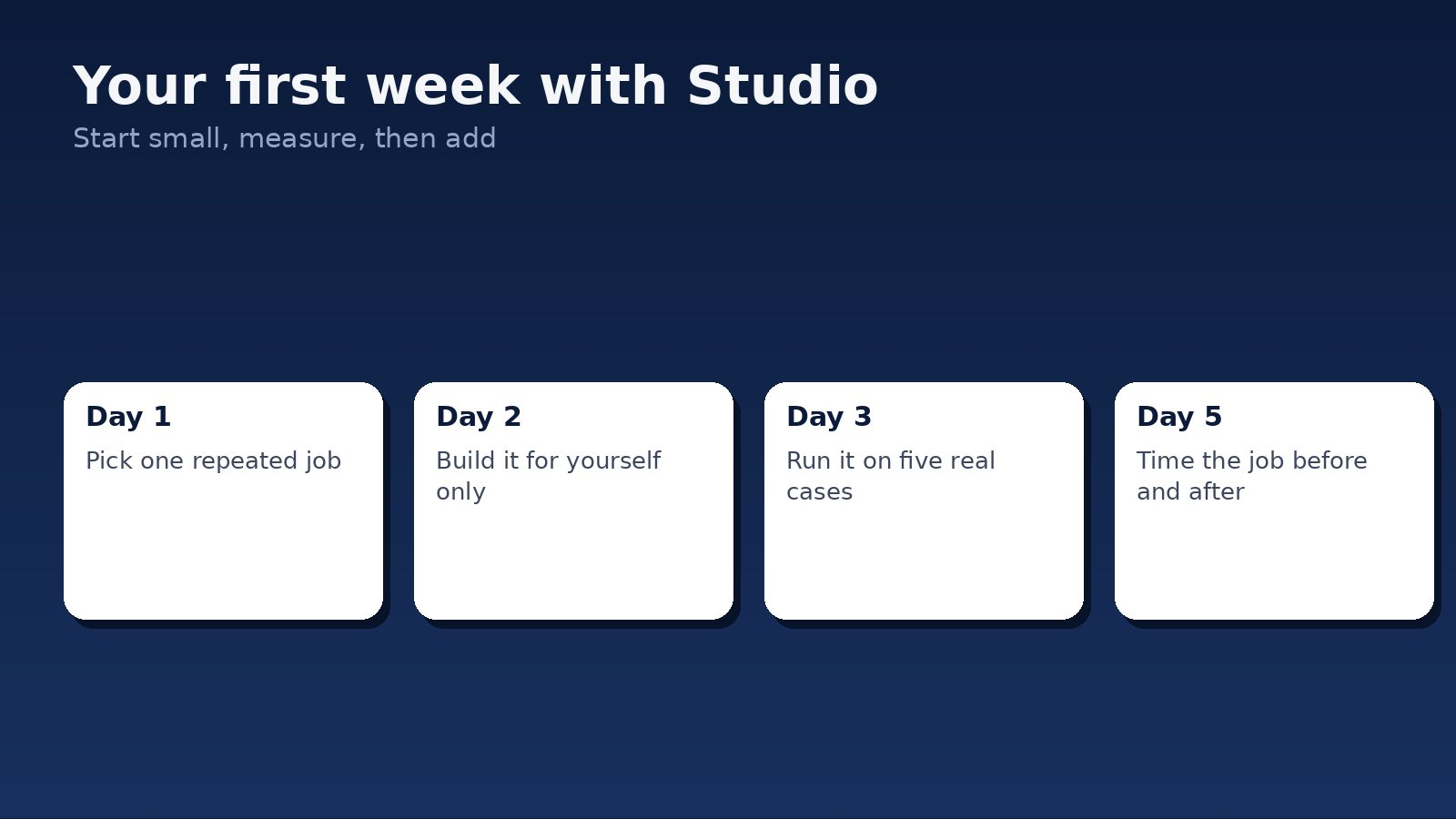
- Confirm your plan. Check that you’re on a Business or Enterprise Workspace plan.
- Pick one repeated job. Choose something dull that someone does at least weekly.
- Time it by hand. Note how long it takes now, so you can prove the change.
- Build it for yourself first. Let it draft rather than send, and test it on five real cases.
- Review after two weeks. Keep it, fix it or drop it.
Frequently asked questions
Is Google Workspace Studio free?
Google says Studio is generally available with all Business and Enterprise Workspace plans and lists no separate price. Check which plan you’re on before you start.
Do I need to know how to code?
No. Google says no coding is required, and you can describe a flow in plain language and have Gemini build it. You’ll still need to check that it does what you meant.
Can it send emails to my customers automatically?
It can send emails and replies, but we recommend drafting instead, and letting a person send. Some sending steps may also require approval when people outside your organisation are involved.
What did Google add in October 2026?
Nested conditionals, a Gmail option to skip follow-up replies, richer Meet and Calendar outputs, and a Drive step that searches for documents. Rollout began on 13 October and can take up to 15 days.
Will it replace a CRM or my other business software?
Not on Google’s description. Studio automates work across Workspace apps and a short list of connectors. If your process depends on many other systems, you will probably still need them.
Sources
- Google Workspace Updates: New logic and search steps in Workspace Studio (9 October 2026, vendor announcement)
- Google Workspace Studio (vendor product page and FAQ)
- Google Workspace Studio Help: Starters and steps (vendor documentation)
Want this run for your business?
Talk to our team. We will show you where the money is leaking and what we would do about it.